
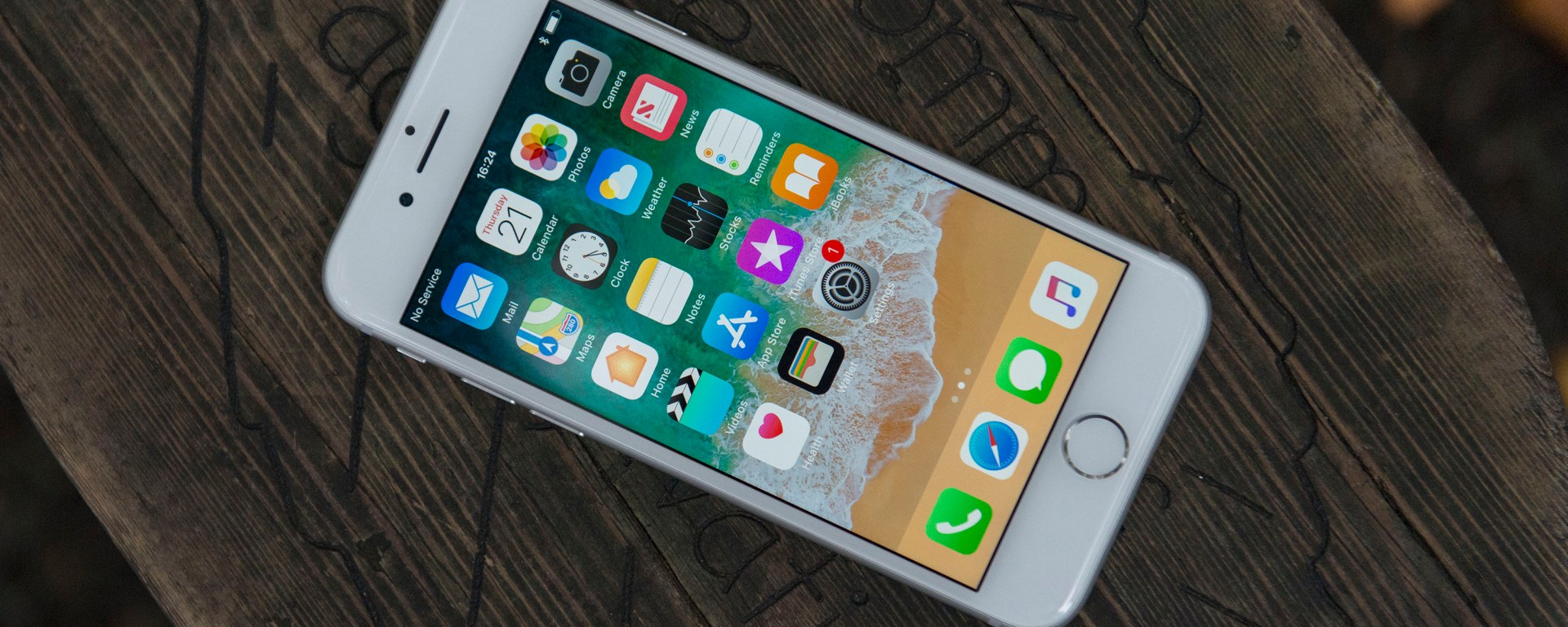
The iPhone is one of the most popular smartphones in the world, and for good reason. It is powerful, easy to use, and boasts a range of features and apps that make it a versatile device for both personal and professional use. However, even the best devices can sometimes experience issues or slow down over time. In such situations, a simple restart can often resolve the problem. This article will explain how to restart your iPhone, step by step.
Back up Your Data
Before restarting your iPhone, it is important to back up your data to avoid losing any important information or files. There are several ways to do this, including using iCloud or iTunes.
To back up your iPhone using iCloud, follow these steps:
- Connect your iPhone to a Wi-Fi network.
- Go to Settings > [Your Name] > iCloud > iCloud Backup.
Tap Back Up Now.
To back up your iPhone using iTunes, follow these steps:
- Connect your iPhone to your computer using a lightning cable.
- Open iTunes on your computer.
- Click on the iPhone icon that appears in the top left corner.
- Click on the Back Up Now button.
Restart Your iPhone
Once you have backed up your data, you can restart your iPhone. There are two ways to do this, depending on the model of your iPhone.
For iPhone 8 and later:
- Press and hold the side button and either of the volume buttons until the power off slider appears.
- Drag the slider to turn off your iPhone.
- After a few seconds, press and hold the side button again until the Apple logo appears.
For iPhone 7 and 7 Plus:
- Press and hold the side button until the power off slider appears.
- Drag the slider to turn off your iPhone.
- After a few seconds, press and hold the side button again until the Apple logo appears.
For iPhone 6s and earlier:
- Press and hold the top (or side) button until the power off slider appears.
- Drag the slider to turn off your iPhone.
- After a few seconds, press and hold the top (or side) button again until the Apple logo appears.
Wait for Your iPhone to Restart
Once you have restarted your iPhone, it may take a few minutes for the device to restart completely. You will know it is done restarting when you see the lock screen. Enter your passcode or Touch ID to unlock your iPhone.
Check for Software Updates
After restarting your iPhone, it is a good idea to check for any software updates that may be available. Updates can often resolve performance issues and fix bugs.
To check for updates, follow these steps:
- Go to Settings > General > Software Update.
- If an update is available, tap Download and Install.
- Follow the on-screen instructions to complete the update process.
Troubleshoot Any Ongoing Issues
If your iPhone is still experiencing issues after restarting it, there are several other troubleshooting steps you can try, including resetting your iPhone, restoring your iPhone from a previous backup, or seeking assistance from Apple Support.
To reset your iPhone, follow these steps:
- Go to Settings > General > Reset.
- Choose Erase All Content and Settings.
- Enter your passcode or Touch ID if prompted.
 K News